Working with Multi-Modality Models
In some cases, you may want to provide multiple inputs for training models with the Segmentation Wizard. For example, when you are working with data from simultaneous image acquisition systems or plan to paint on a filtered image. You can select multiple inputs either in the Data Selection dialog or by selecting the multiple inputs in the Data Properties and Settings panel beforehand.
You should note the following whenever you work with multi-modality images:
- All input datasets must be registered and have the same geometry and shape.
- The number of modalities for deep learning and machine learning (classical) models is generated automatically based on your initial data selection.
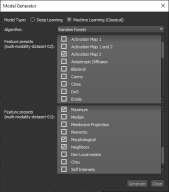
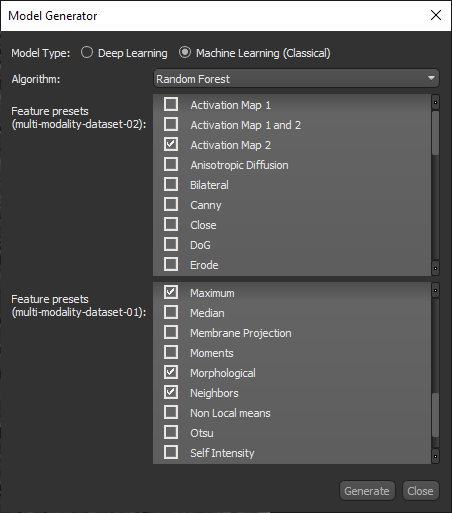
- You can choose different feature trees for each input of a machine learning (classical) model in the Model Generator dialog, as shown in the following screen capture.
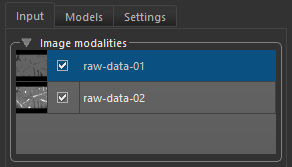
- If you working with multiple image modalities, an Image modalities box will appear at the top of the Input tab.
- Selecting an image in the list will automatically change the modality displayed in the workspace views and update the image data selected for defining a range in the ROI Tools panel and for painting with the adaptive brushes and other ROI Painter tools.
You can also exclude an image modality from model training, as shown below. For example, in cases in which a modality will only be used for labeling voxels.

Note You can also use the keyboard shortcuts Show Next Image Modality and Show Previous Image Modality to change the modality displayed.
- You can reorder and rename your datasets in the Image modalities prior to training. To reorder an item, simply drag it up or down in the list.
- Defined ranges for each dataset will be retained whenever you navigate between the different input images. You should also note that the opacity of the range highlight is selectable.
- Reopened Segmentation Wizard sessions will open automatically on the last modality that was visible in the workspace.
 Starting a Multi-Modality Image Session
You can start a multiple image modalities session by either selecting all of the required input datasets on the Data Properties and Settings panel prior to launching the Segmentation Wizard, or you can start a multi-modality session from the Artificial Intelligence menu bar item and then add the required image modalities in the Data Selection dialog.
-
Do the following to start a multi-modality session from datasets selected on the Data Properties and Settings panel:
-
Select all of the input datasets on the Data Properties and Settings panel that you plan to include in the session.
-
Right-click and then choose Segmentation Wizard in the pop-up menu.
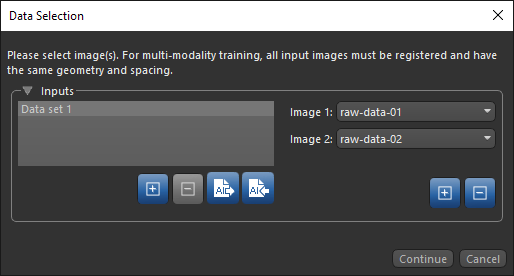
The selected input datasets appear in the Data Selection dialog, as shown below.
-
-
Do the following to start a multi-modality session from the Artificial Intelligence menu bar item:
-
Choose Artificial Intelligence > Segmentation Wizard > New on the menu bar.
-
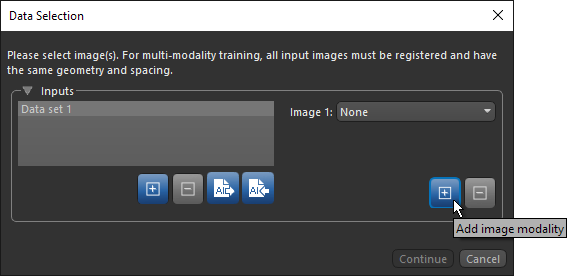
Click the Add Image Modality button, as shown below, to add an additional image modality to the current training set.
-
Select the input images for each modality, as required.
-
-
Do the following, as required.
-
Select alternate images in the Image drop-down menus.
Note Input order is important for multi-modality training and must be consistent when applying a trained model to a full dataset.
-
Click the Add Image Modality button to add an additional image modality to the selected training set.
-
Click the Add Dataset button to add an additional training set to the session.
-
-
Click the Continue button.
The Segmentation Wizard appears onscreen and the selected inputs appear on the Input tab in the Image modalities box, as shown below.